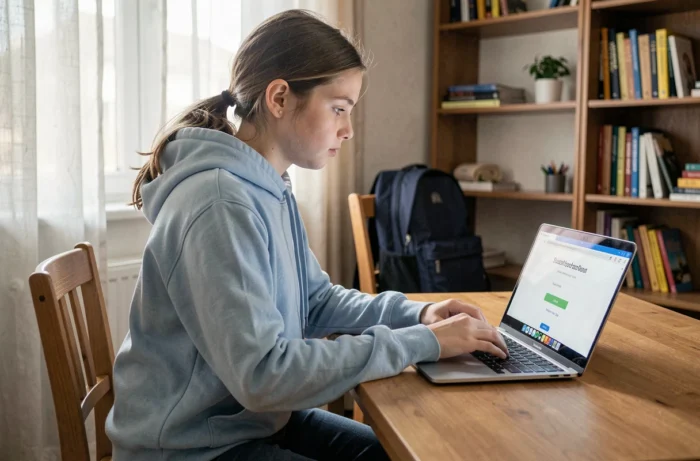
The connection to student and family spaces today relies on an authentication chain that far exceeds the Pronote or École Directe username/password pair. In several academies, direct access via the Pronote URL has been removed in favor of a mandatory pathway through the academic ENT and an EduConnect account activated in advance. Understanding this architecture avoids the majority of reported blockages each school year.
EduConnect Linkage: The Lock That Standard Tutorials Ignore
The most common connection issue is not on Pronote or the ENT, but upstream, at the EduConnect account level. A parent whose child does not appear in their EduConnect space will never be able to access the Pronote tile on the ENT, even with valid credentials.
Several documented situations cause this blockage: a child still linked to an old institution after a change of middle or high school, an EduConnect account created but never activated by validating the email address, or a child enrolled late whose administrative linkage has not been synchronized with the student database.
We recommend checking the linkage directly on the EduConnect portal (teleservices.education.gouv.fr) before attempting to connect to the ENT. If the child does not appear, the school’s administration is the only contact capable of correcting the link in Siècle, the academic database. No action on the parent’s side resolves this type of blockage.
For families encountering this kind of difficulty, a guide to using 1 Objectif 1 Formation details the verification and resolution steps step-by-step.
ENT Pathway to Pronote: What Changes Depending on the Academies
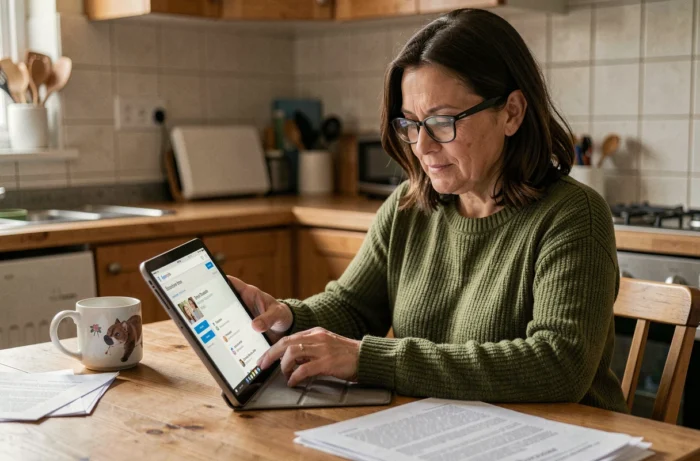
Access to Pronote via the ENT is not uniform across the territory. In some academies (Rennes, for example) and certain departments (Yvelines in particular), no direct access code to Pronote is distributed to families. The only path goes through the academic ENT, then through the tile or Pronote icon integrated into the portal.
Specifically, old URLs of the type “pronote.etablissement.fr” redirect to an error page or to the ENT portal. Families who had saved a direct favorite in their browser find themselves blocked without understanding why.
Identifying the Correct ENT Portal
Each region or department uses a different ENT. Here are the most common cases:
- Toutatice for the Rennes academy, which includes Breton middle and high schools with mandatory EduConnect authentication.
- Oze 92 for Yvelines (which has become ENT 78 in some contexts), where notifications and access to Pronote transit through the same portal.
- ENT Auvergne-Rhône-Alpes for high schools in the region, with a specific connection pathway going through educonnect.education.gouv.fr before redirection.
The homepage of the institution’s website remains the most reliable source for finding the correct ENT link. We advise against searching “Pronote + name of the middle school” in a search engine: results often lead to old inactive URLs.
Connecting from the Pronote Mobile App: Setup and Common Pitfalls
The Pronote mobile app (published by Index Éducation, available on Android and iOS) requires an initial setup different from the web version. The QR code generated from the web space remains the most reliable method for setting up the mobile app.
Recommended Setup Procedure
First, log in to your Pronote space from a computer via the ENT. In the account settings, generate a mobile configuration QR code. This QR code encodes the server address, the identifier, and a temporary authentication token.
On the mobile app, tap the “+” button to add an account, then scan the QR code. This method avoids URL entry errors and bypasses the geolocation issue (automatic search by geographic proximity often fails if the institution is not listed or if the phone is not nearby).
Custom Password and First Connection
During the very first web connection, Pronote requires a password change. The custom password permanently replaces the one provided by the institution. If you set up the mobile app before making this first web connection, the temporary password will be used, then will become invalid as soon as the next web connection is made.
A password of eight to ten characters combining uppercase letters, lowercase letters, numbers, and a special character is sufficient. We recommend storing it in the Notes or Memo app on the phone rather than relying solely on memory.
Troubleshooting Persistent Connection Errors in the Family Space
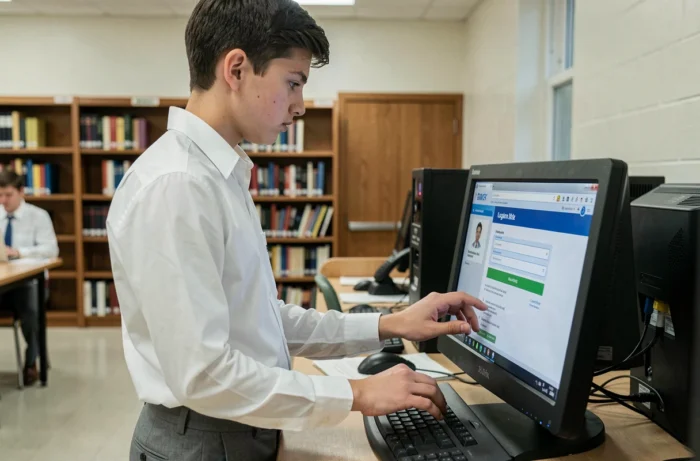
Recurring blockages almost always fall into one of these three categories:
- Browser cache and cookies that retain an old session or an old ENT authentication token. Clearing the browser cache or testing in private browsing resolves the majority of these cases.
- EduConnect account deactivated or expired after a prolonged period of inactivity. Reactivation goes through the EduConnect portal with the email address declared when creating the account.
- Infrastructure issue on the ENT or Pronote server side, particularly common at the beginning of the week and during class council periods. In this case, the only option is to try again later.
In the event of a cyberattack or major incident on the academic infrastructure, access to Pronote may be suspended for several days. Such incidents have been documented, leading to the postponement of class councils and the complete unavailability of the family space.
Differentiating a personal account issue from a server outage avoids unnecessary steps with the administration. Before contacting the institution, check if other parents from the same middle or high school are experiencing the same blockage: if so, the problem is collective and does not require individual intervention.
The connection pathway to student and family spaces has become more complex with the generalization of EduConnect and regional ENTs. The key remains to address each layer of authentication separately: first EduConnect, then the ENT, then Pronote or École Directe. When a blockage occurs, identifying at which level it happens saves considerable time.